Creating an IAM Admin Account in AWS IAM Identity Center
Author: Mohan Drey G. Tampon
Last Updated At: 2025-12-18
Since we are using AWS Organizations, it is best practice to manage access through AWS IAM Identity Center rather than creating individual IAM users directly in the IAM service. IAM users can become difficult to manage and scale over time, especially across multiple accounts.
AWS IAM Identity Center provides a centralized console for managing users, groups, and permissions across all accounts in the organization. It simplifies access management, improves security, and makes it easier to enforce consistent policies as the organization grows.
Step 1: Create an Administrator Permission Set
Note
This can be skipped if there is already an Administrator Permission Set present
- Sign in to the AWS Management Console using the management account of the AWS Organization
- Navigate to IAM Identity Center
- Select Multi-account permissions
- Choose Permission sets
- Click Create permission set
Permission Set Configuration
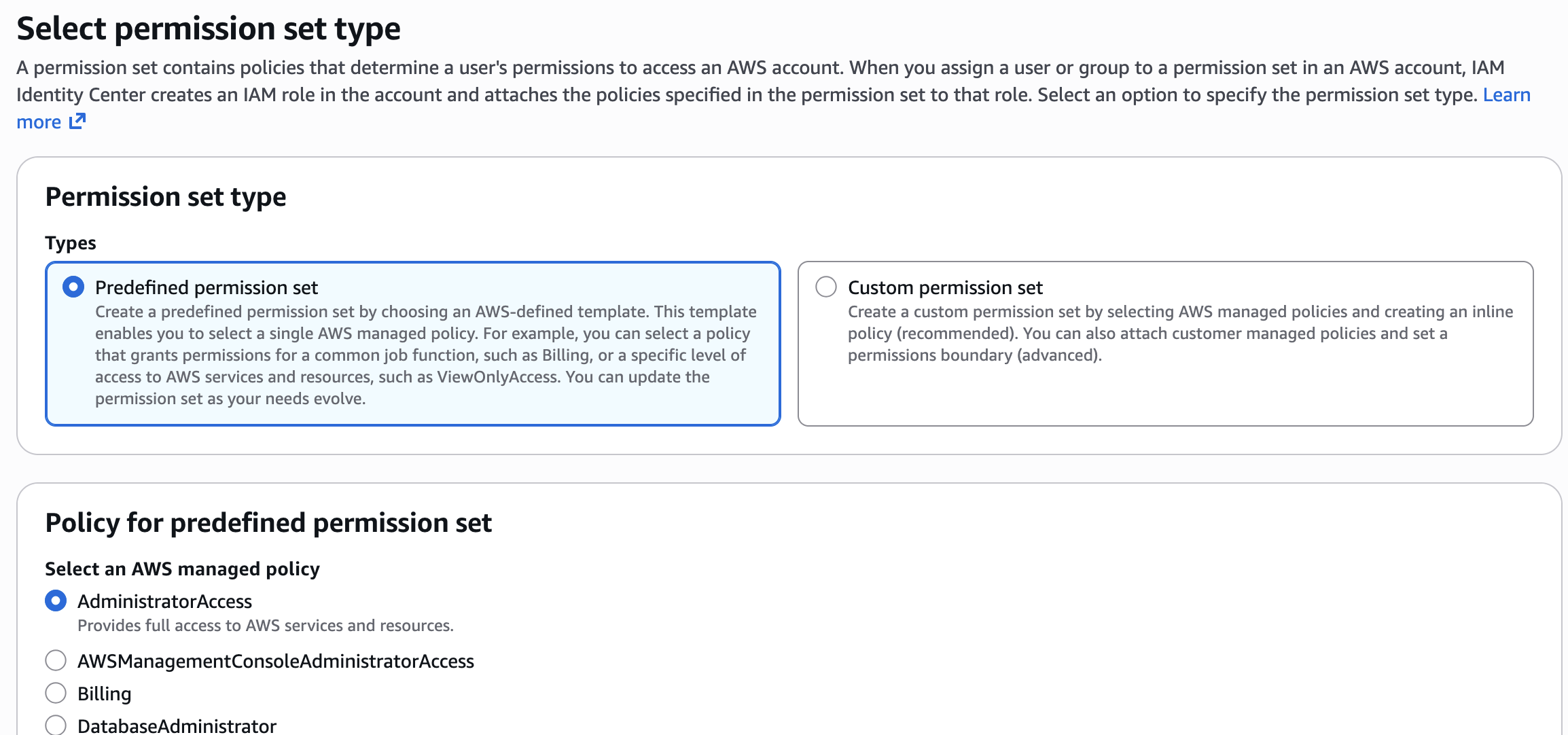
- Permission set type: Predefined permission set
- AWS managed policy:
AdministratorAccess - Description: (optional, but recommended)
- Session duration: Configure according to your security requirements
- Tags: Add tags for filtering
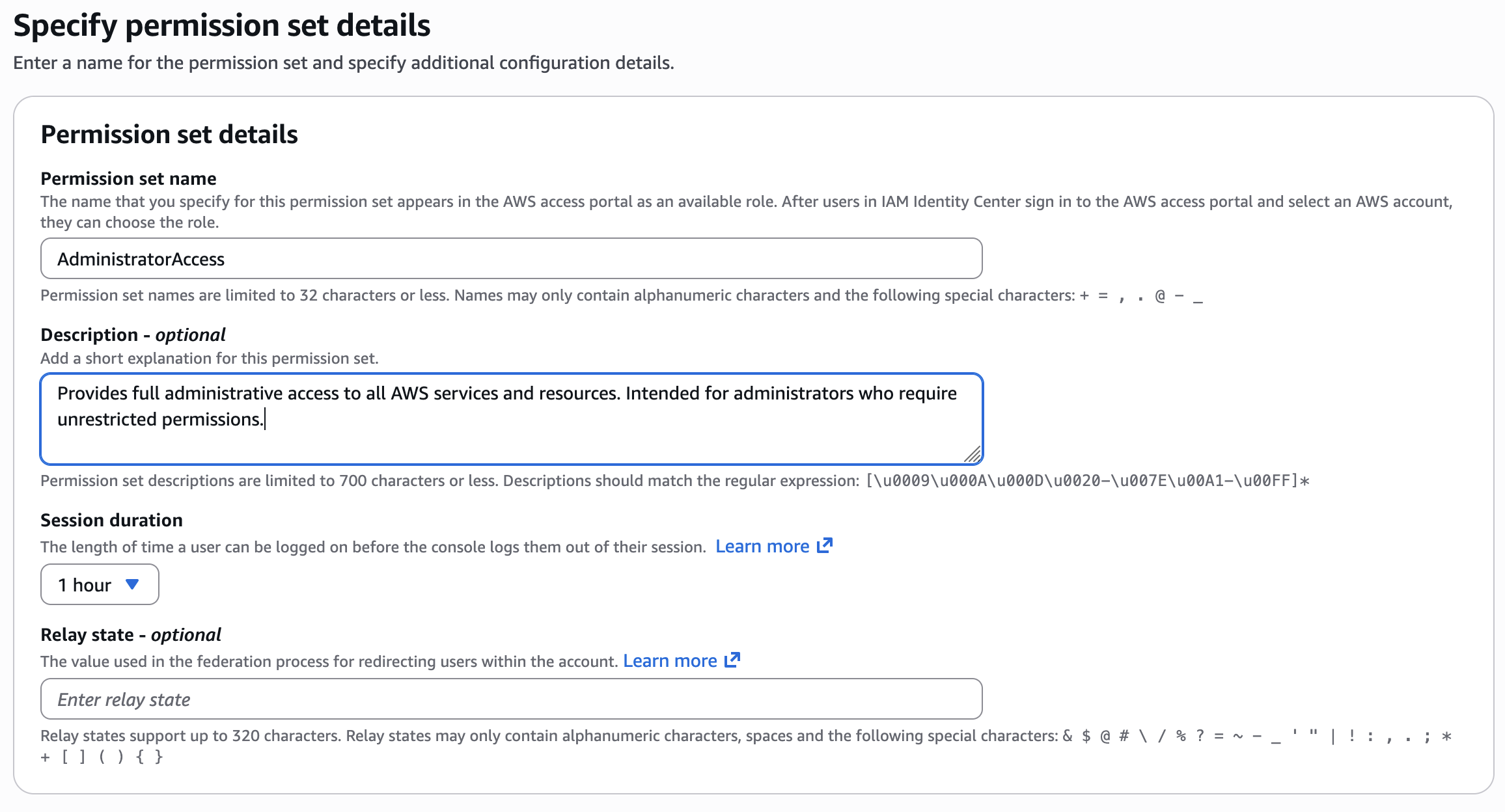
Click Next then review the details. After reviewing, click Create.
Step 2: Create an IAM Identity Center Groups
Note
If the group already exists, this step can be skipped.
- Navigate to IAM Identity Center
- Select Groups
- Click Create group
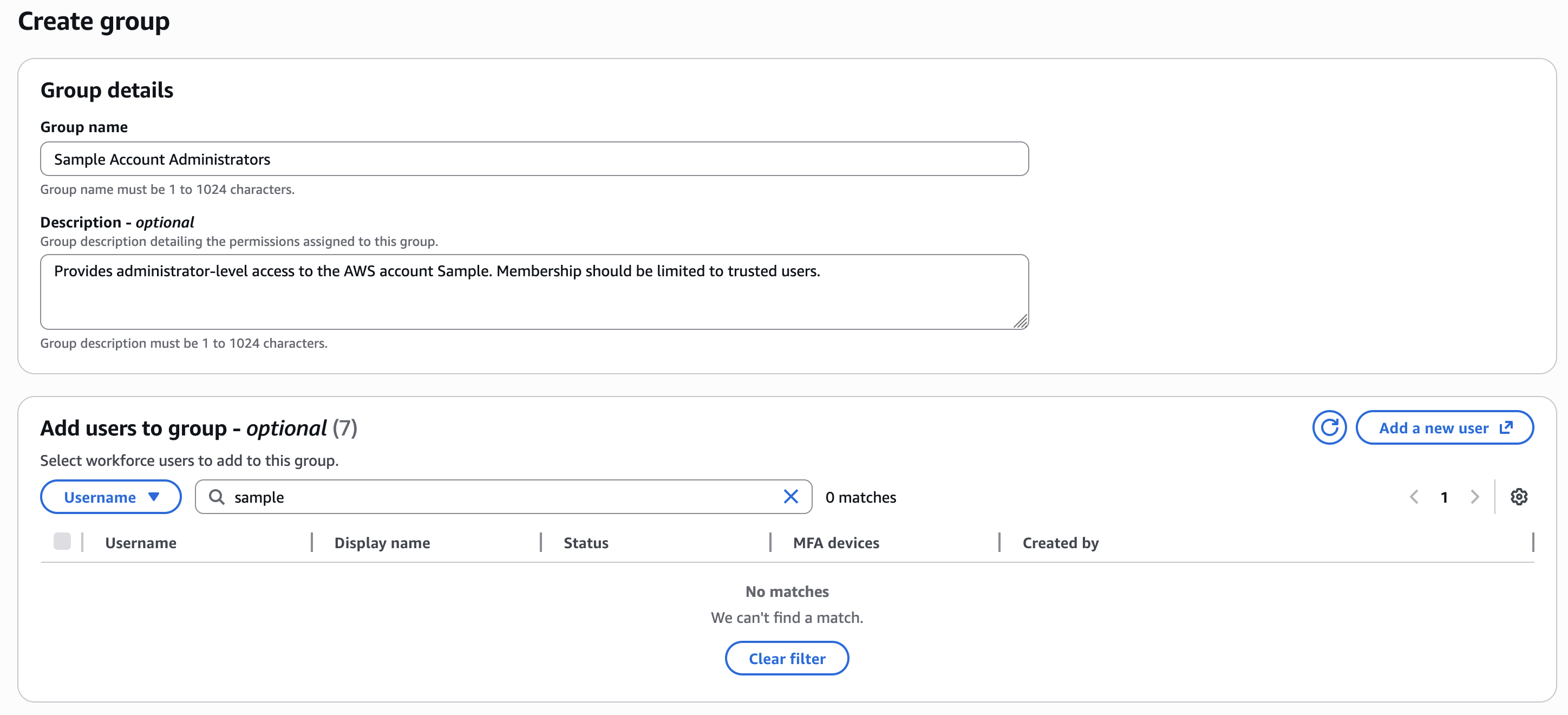
Note
You can add users in this group if those users already exist.
Group Configuration
- Group Name: Choose a clear, descriptive name (for example Clock Me Admin Group)
- Description: (optional, but recommended)
Complete the group creation process.
Assign the Administrator Permission Set and Target Account to the Group
After creating the group:
- Select the newly created group
- Navigate to AWS accounts
- Select the target AWS account within the AWS Organization
- Select the
AdministratorAccessPermissions set - Click the Assign to complete the setup
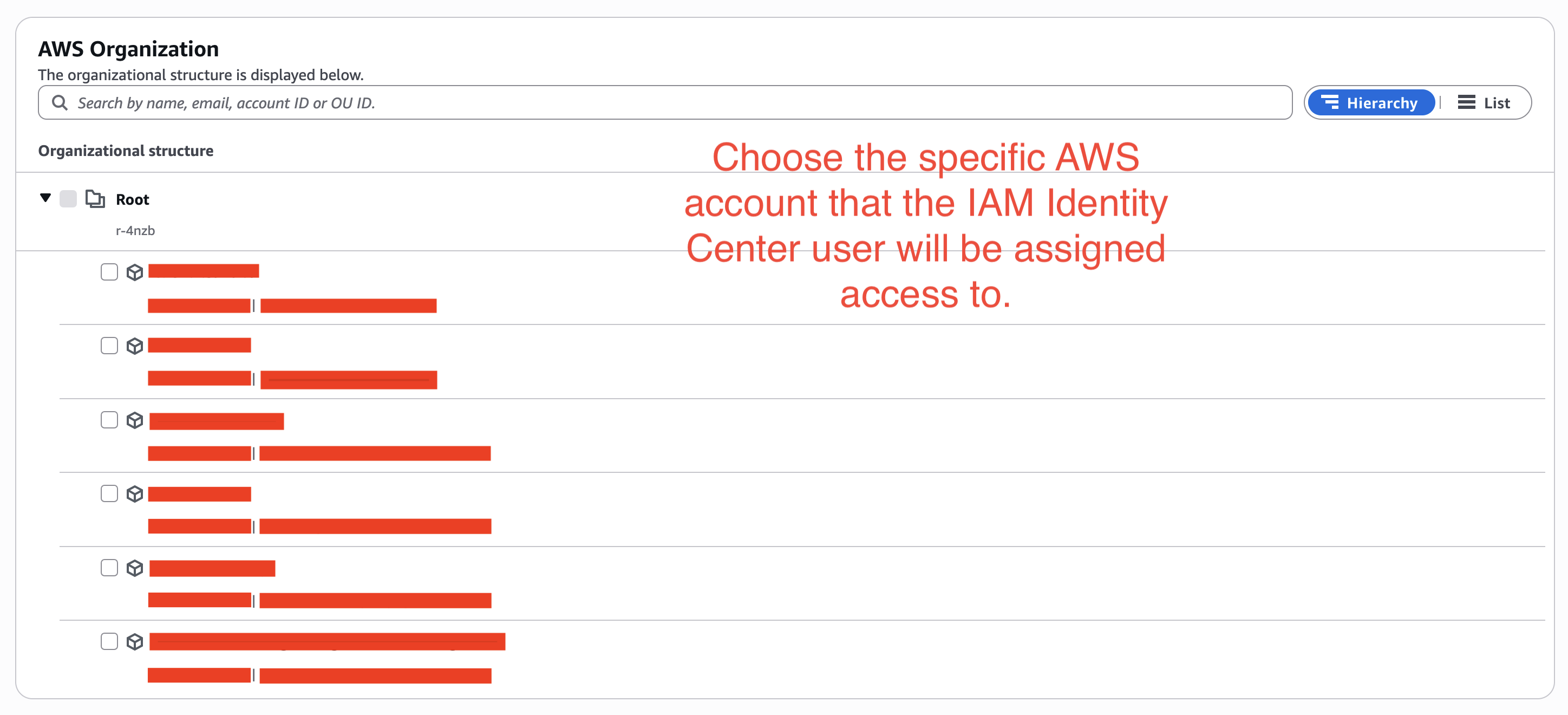
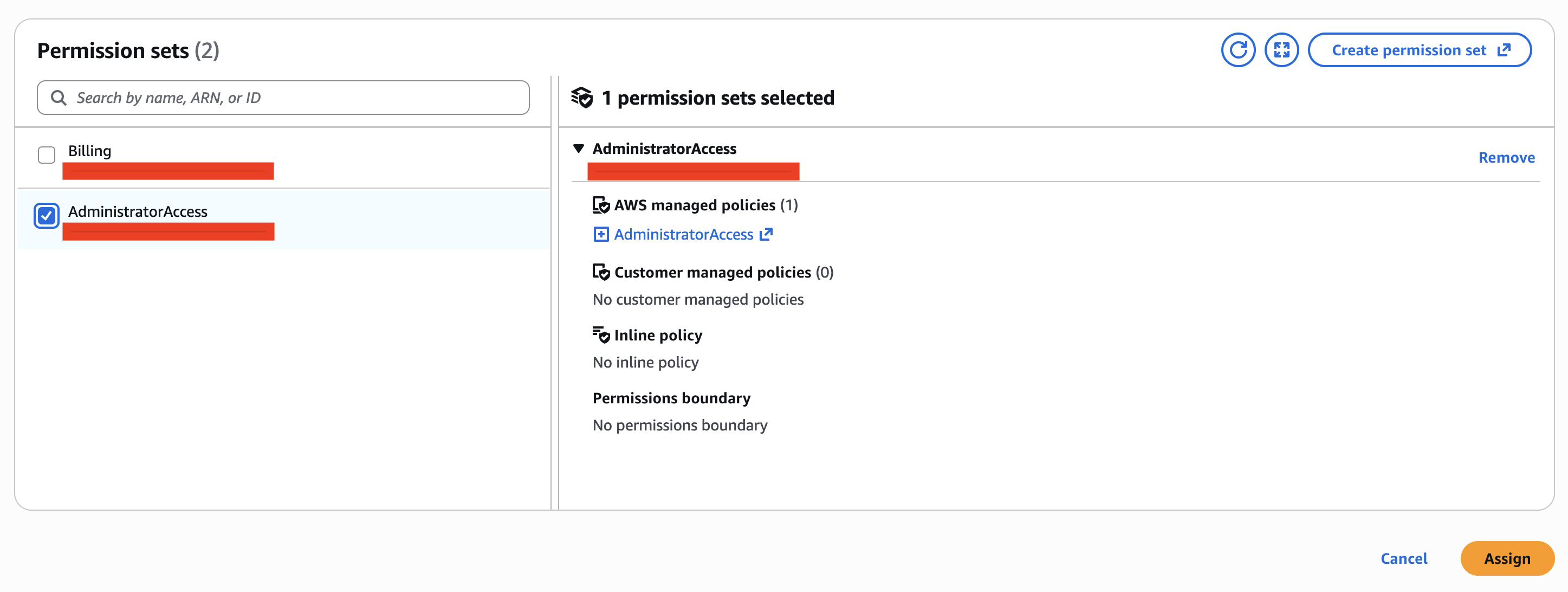
This assignment grants all users in the group administrator-level access to the selected AWS account.
Step 3: Create an IAM Identity Center User
- Navigate to IAM Identity Center
- Select Users
- Click the Add User
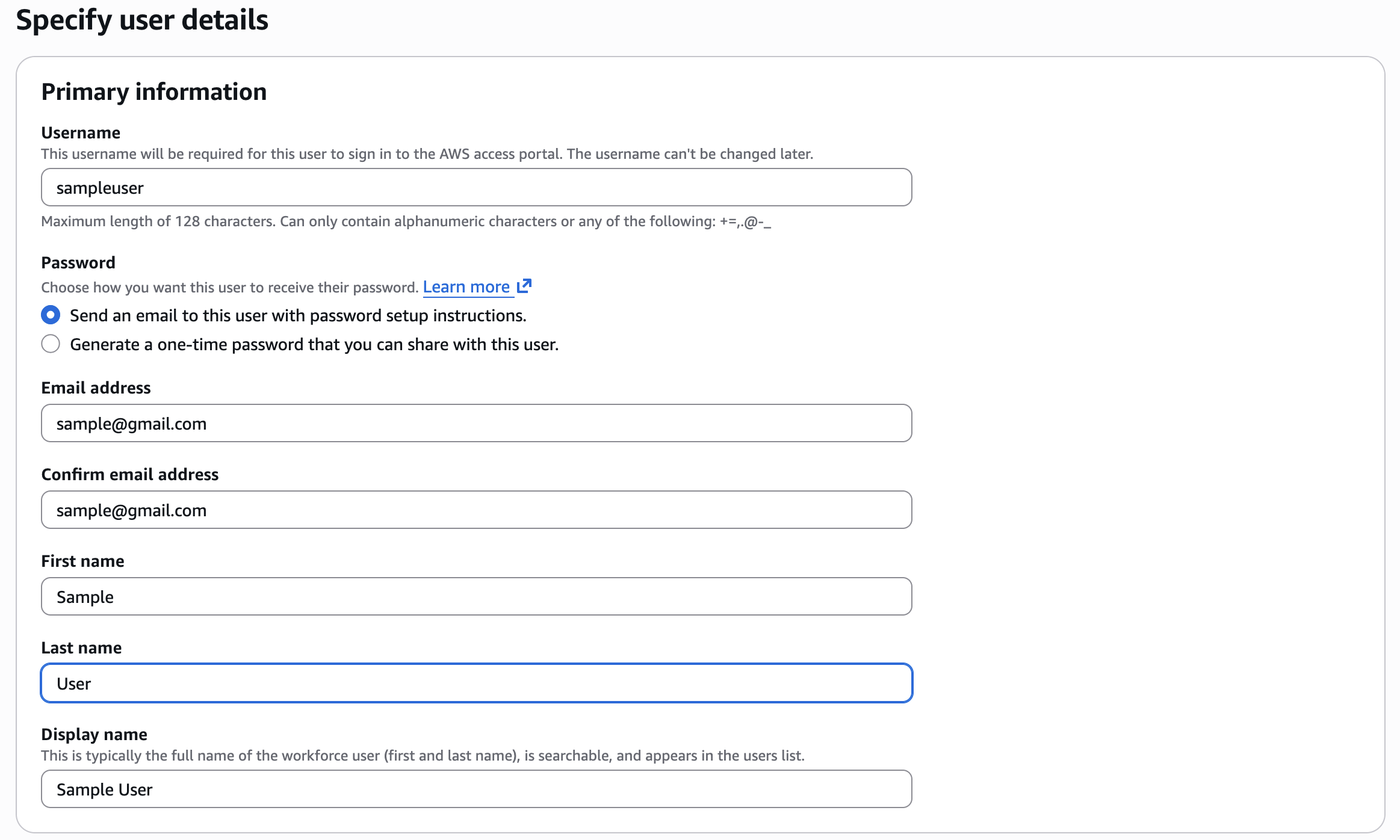
Specify user details configuration
Provide the following information
- Username: Enter appropriate username
- Password:
- Generating a one time password, or
- Send email to this user with password setup instructions (recommended)
- Email Address
- First Name / Last Name
- Display Name: Automatically populated; typically just the first and last name of the user.
The following fields are optional and may be completed as needed:
- Contact methods
- Job-related information
- Address
- Preferences
- Additional attributes
Add the User to Groups and Complete Setup
- Select one or more groups to which the user should belong (for example, the administrator group created earlier)
- Click Next
- Review the user details
- Click Add user to complete the process
Once the user is created, an email will be sent to the user with instructions to set up their password. The email will also include a link to the IAM Identity Center access portal, which the user will use to sign in and access assigned AWS accounts and applications.